Grafana Cloud is a fully-managed observability platform that includes Grafana Tempo for distributed tracing. OpenRouter sends traces via the standard OTLP HTTP/JSON endpoint.Step 1: Get your Grafana Cloud credentials You’ll need three values from your Grafana Cloud portal:
Base URL : Your Grafana Cloud OTLP endpoint (e.g., https://otlp-gateway-prod-us-west-0.grafana.net)Instance ID : Your numeric Grafana Cloud instance ID (e.g., 123456)API Key : A Grafana Cloud API token with write permissions (starts with glc_...)
Finding your OTLP endpoint
Log in to your Grafana Cloud portal
Navigate to Connections > Add new connection
Search for OpenTelemetry (OTLP) and select it
On the configuration page, you’ll find your OTLP endpoint URL
The base URL should be the OTLP gateway endpoint, not your main Grafana dashboard URL. The format is https://otlp-gateway-prod-{region}.grafana.net.
Finding your Instance ID
Go to your Grafana Cloud account at https://grafana.com/orgs/{your-org}/stacks
Select your stack
Your Instance ID is the numeric value shown in the URL or on the stack details page
In Grafana Cloud, go to My Account > Access Policies
Create a new access policy with traces:write scope
Generate a token from this policy
Copy the token (starts with glc_...)
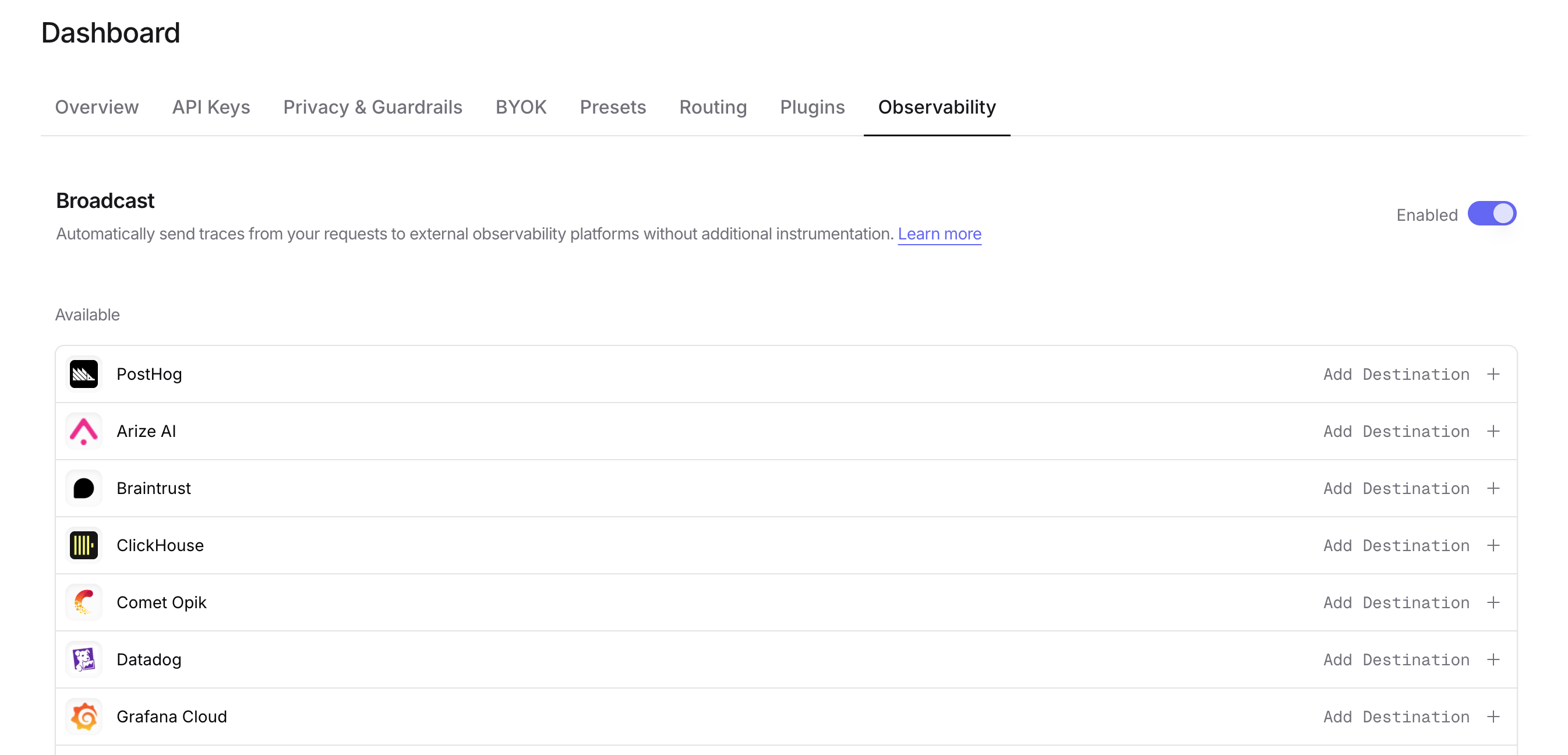
Step 2: Enable Broadcast in OpenRouter Go to Settings > Observability and toggle Enable Broadcast .
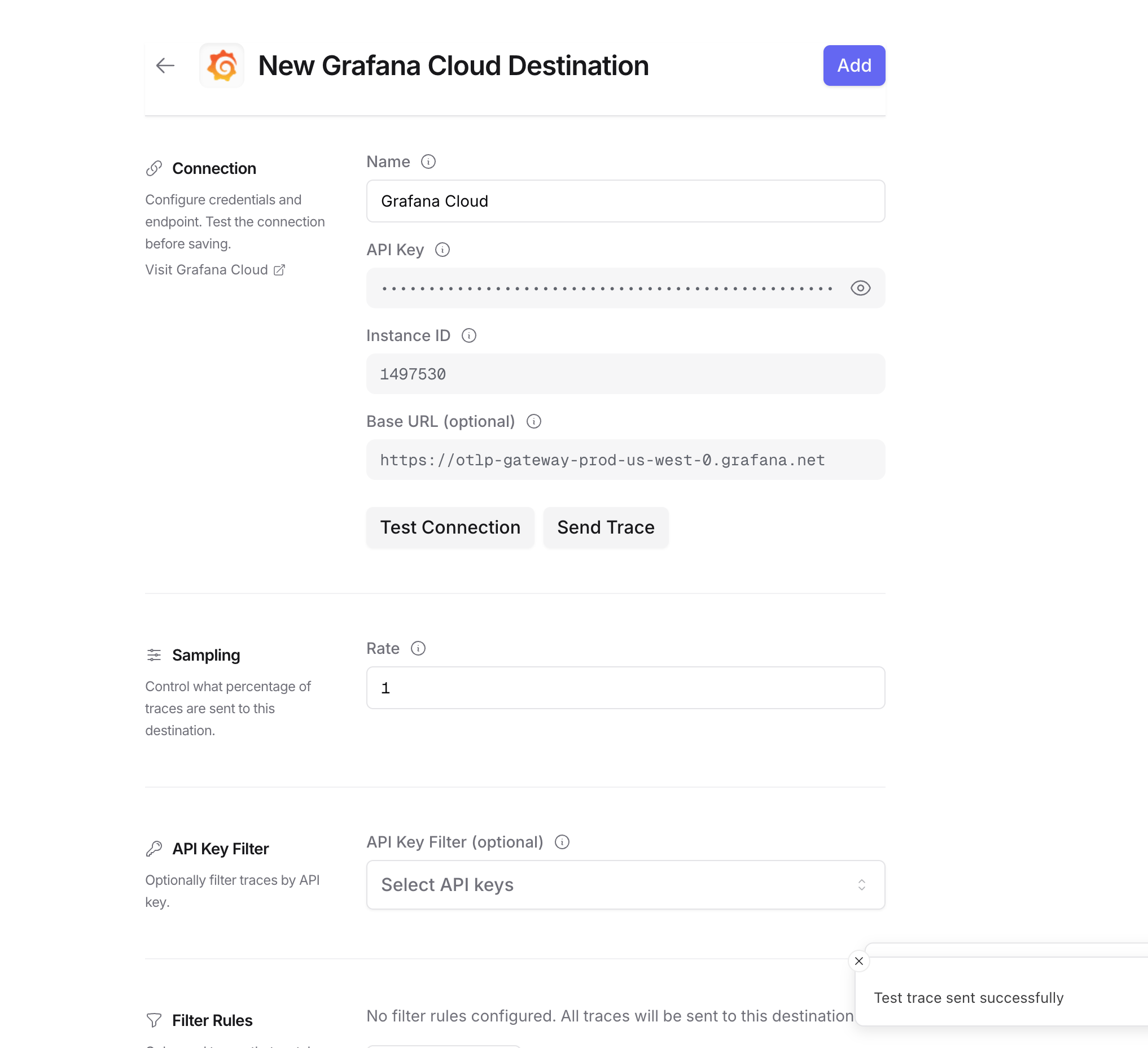
Click the edit icon next to Grafana Cloud and enter:
Base URL : Your Grafana Cloud OTLP endpoint (e.g., https://otlp-gateway-prod-us-west-0.grafana.net)Instance ID : Your numeric Grafana Cloud instance IDAPI Key : Your Grafana Cloud API token with write permissions
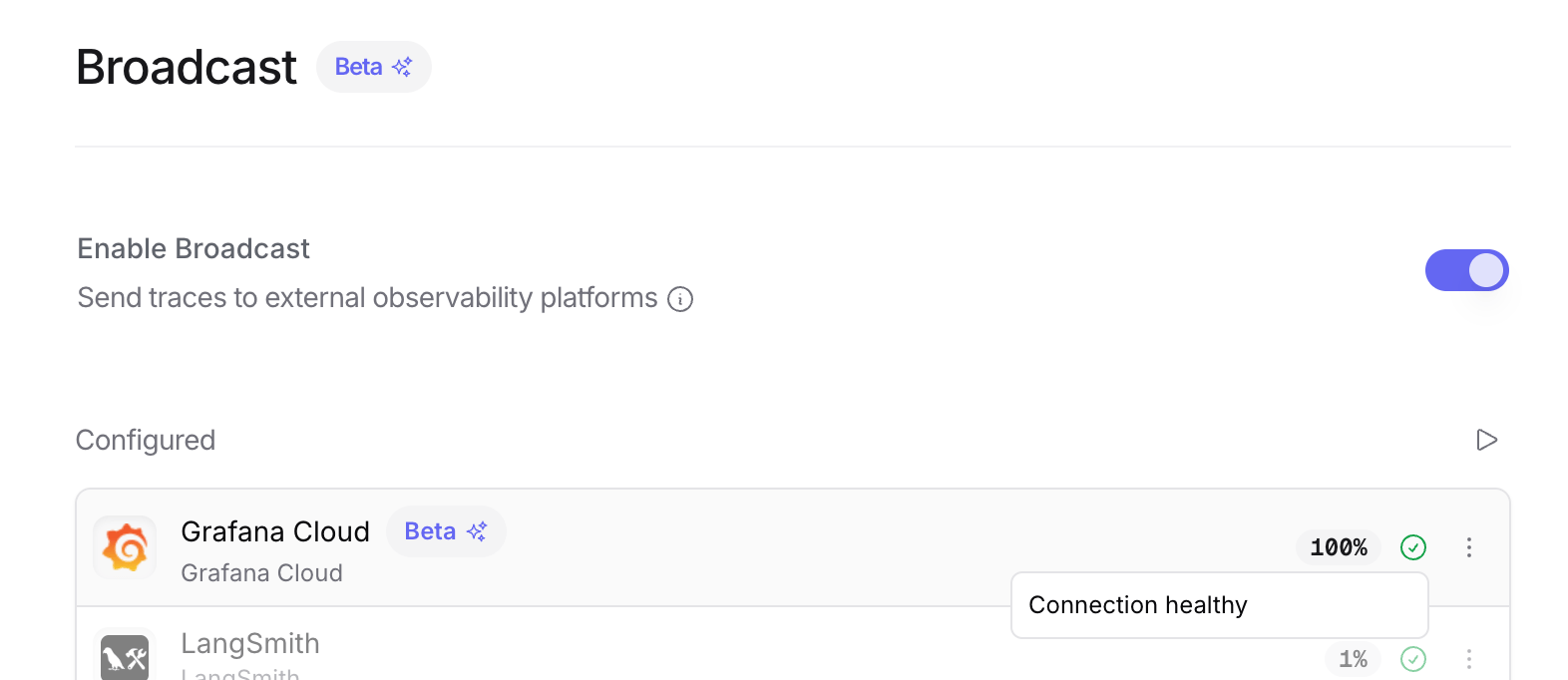
Step 4: Test and save Click Test Connection to verify the setup. The configuration only saves if the test passes.
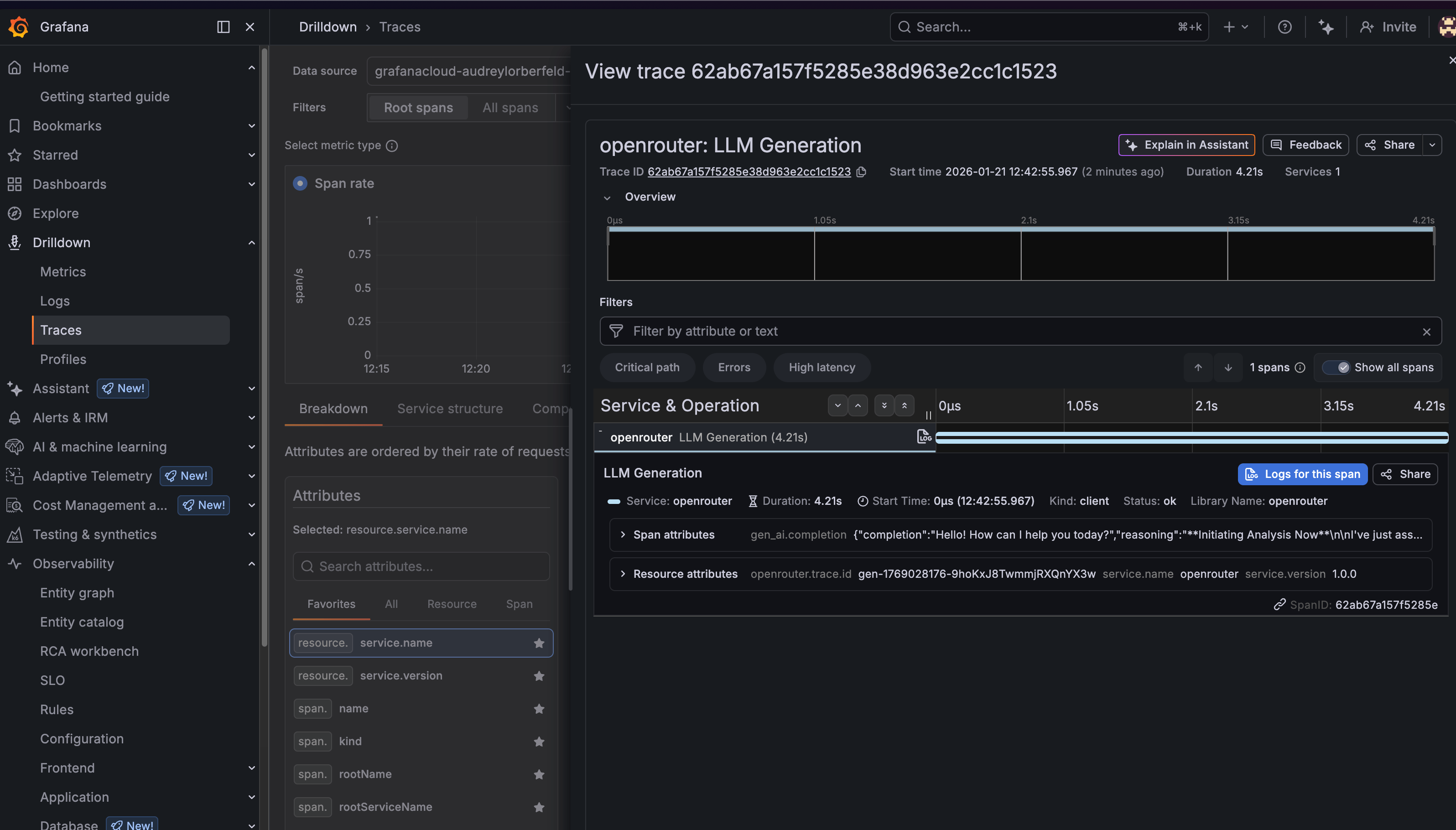
Step 5: Send a test trace Make an API request through OpenRouter and view the trace in Grafana Cloud.
Viewing your traces Once configured, you can view traces in Grafana Cloud in two ways:
Option 1: Explore with TraceQL
Go to your Grafana Cloud instance (e.g., https://your-stack.grafana.net)
Click Explore in the left sidebar
Select your Tempo data source (e.g., grafanacloud-*-traces)
Switch to the TraceQL tab
Run this query to see all OpenRouter traces:
You can also filter by specific attributes:
Option 2: Drilldown > Traces
Go to your Grafana Cloud instance
Navigate to Drilldown > Traces in the left sidebar
Use the filters to find traces by service name, duration, or other attributes
Click on any trace to see the full span breakdown
Trace attributes OpenRouter traces include the following key attributes:
Resource attributes
service.name: Always openrouterservice.version: 1.0.0openrouter.trace.id: The OpenRouter trace ID
Span attributes
gen_ai.operation.name: The operation type (e.g., chat)gen_ai.system: The AI provider (e.g., openai)gen_ai.request.model: The requested modelgen_ai.response.model: The actual model usedgen_ai.usage.input_tokens: Number of input tokensgen_ai.usage.output_tokens: Number of output tokensgen_ai.usage.total_tokens: Total tokens usedgen_ai.response.finish_reason: Why the generation ended (e.g., stop)
Any metadata you attach to your OpenRouter requests will appear under the trace.metadata.* namespace. See Custom Metadata below for details.
Grafana Cloud receives traces via the OTLP protocol. Custom metadata from the trace field is sent as span attributes and can be queried using TraceQL.
Example Custom metadata keys are available as span attributes under trace.metadata.*:
Additional Context
The user field maps to user.id in span attributes
The session_id field maps to session.id in span attributes
Custom metadata keys from trace appear under the trace.metadata.* namespace in span attributes
You can create Grafana dashboards and alerts based on custom metadata attributes
Example TraceQL queries Find slow requests (> 5 seconds) Find requests by user Find errors Find requests by model Troubleshooting Traces not appearing
Check the time range : Grafana’s time picker might not include your trace timestamp. Try expanding to “Last 1 hour” or “Last 24 hours”.Verify the endpoint : Make sure you’re using the OTLP gateway URL (https://otlp-gateway-prod-{region}.grafana.net), not your main Grafana URL.Check authentication : Ensure your Instance ID is numeric and your API key has write permissions.Wait a moment : There can be a 1-2 minute delay before traces appear in Grafana.
Wrong data source If you don’t see any traces, make sure you’ve selected the correct Tempo data source in the Explore view. It’s typically named grafanacloud-{stack}-traces.
Additional resources Privacy Mode When Privacy Mode is enabled for this destination, prompt and completion content is excluded from traces. All other trace data — token usage, costs, timing, model information, and custom metadata — is still sent normally. See Privacy Mode for details.